Create a dashboard and add reports
Put saved reports on a custom dashboard, arrange them, and check which reports follow its date filters.
A saved report can appear on a custom dashboard. For example, save a weekly attendance report, add it to a dashboard named Sunday attendance, and return to that dashboard for your weekly review.
Dashboards are separate from the built-in Overview tabs. Adding a report to a custom dashboard does not add it to Overview. To change the cards on your home overview, see Use home widgets.
Before you start
Check that you have selected the intended organization. You need access to the saved report and permission to manage dashboards. You also need edit access to the destination dashboard. Viewing a dashboard does not automatically let you change it or grant access to every report's data.
If an action below is missing or disabled, ask your administrator to check your access and permissions. Giving information has separate access requirements.
If Dashboards shows Connect Planning Center instead of the dashboard list, choose Connect Integration and follow Connect your integrations first.
Create an empty dashboard
- Open Dashboards in the sidebar.
- Choose Create Dashboard.
- Choose Blank Dashboard to start with your own reports.
- Enter a Name, such as Sunday attendance. Add an optional Description and choose a Default Time Range if you want one.
- Choose Create Dashboard.
The default time range does not override every report's saved dates. Check the date-filter behavior after adding reports.
Add a saved report to an existing dashboard
- Open Reports and select the saved report you want to display. For example, open your weekly attendance report and check its groups, dates, and chart.
- Choose Add to dashboard on the report page.
- In Save to Dashboard, select Existing Dashboard.
- Search for your dashboard if needed, then select its name.
- Choose Add to Dashboard.
- In the success message, choose View Dashboard. You can also return to Dashboards and open it by name.
The report now appears as a tile. Adding it to a dashboard does not create a separate copy of the saved report.
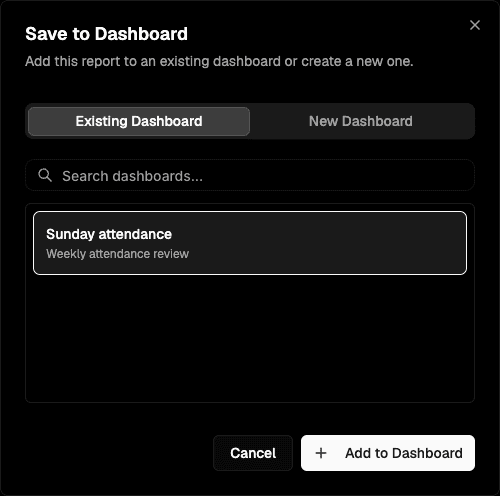
Create a dashboard while adding a report
You can also start directly from a saved report without creating an empty dashboard first.
- Open the saved report in Reports and choose Add to dashboard.
- In Save to Dashboard, select New Dashboard.
- Enter a Dashboard Name, such as Sunday attendance.
- Choose Add to Dashboard.
- Choose View Dashboard in the success message, or open the new dashboard from Dashboards.
This creates the dashboard and adds the report to it. Repeat the existing dashboard steps for each additional saved report.
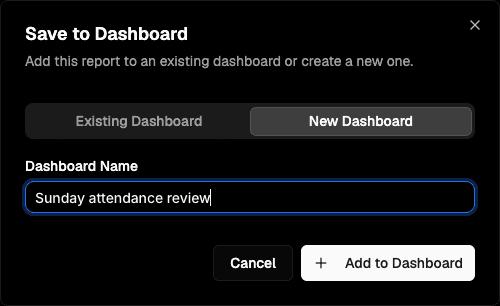
Arrange and resize reports
Use a desktop-sized window to edit the layout. The mobile view is for viewing reports; the desktop layout controls are not available there.
- Open the dashboard, then choose Customize → Edit Layout.
- Drag a tile to move it. Drag its resize handle to change its size.
- Choose Save Changes to keep the layout, or Cancel to discard your edits. If nothing changed, the button reads Done.
- Reload the dashboard and confirm the reports and arrangement are still there.
For related reports, place the chart above its table and give both enough width to read their labels. Each is a separate saved report. Adding one does not automatically create the other.
You can also choose Customize → Add Tile to select another report from within the dashboard.
Check which reports follow dashboard dates
Read each tile's date indicator before comparing results.
- Follows date filters means the report can respond to the dashboard date selection.
- Not linked to date filters means changing the dashboard dates does not change that report's period.
- A Fixed date range indicator identifies a tile with its own dates. The dashboard date filter does not override them.
Check the report's own dates and filters if its values do not change. Compare reports only after confirming that their periods and attendance definitions match. A dashboard brings reports together, but it does not make different report definitions equivalent.
If something is missing
| What you see | What to check |
|---|---|
| No Add to dashboard action | Open a saved report and check dashboard-management permission with your administrator. |
| The destination is missing or cannot be selected | Check the selected organization and your edit access to that dashboard. |
| No Customize control | Use a desktop-sized window and check permission to edit the dashboard. |
| A dashboard tile is restricted or fails to load | Check the underlying data and giving permissions. Viewing a shared dashboard tile does not require report-library access; opening the original report separately does. |
| Dates change but a tile does not | Read its date indicator and check its saved date range. |
| A layout change disappears after reload | Save the layout and resolve any save error before leaving the page. |
For organization selection, see Choose a workspace.